How to Access Your Helper Account Info on Herewith
Learn where to find your important Helper account information including settings and notifications
Written by
By Jill Tomasetti
Published
24 June 2026
Blog /
At Herewith we do our best to make finding jobs in senior care easy and user-friendly.
Our goal is to make it as seamless as possible to navigate between job searching to chatting to clocking in for work, to set you up for success no matter what stage of your career you're in.
Whether you have downloaded the Helper mobile app on your phone or if you prefer to log in on the web, you can easily access your account info anytime.
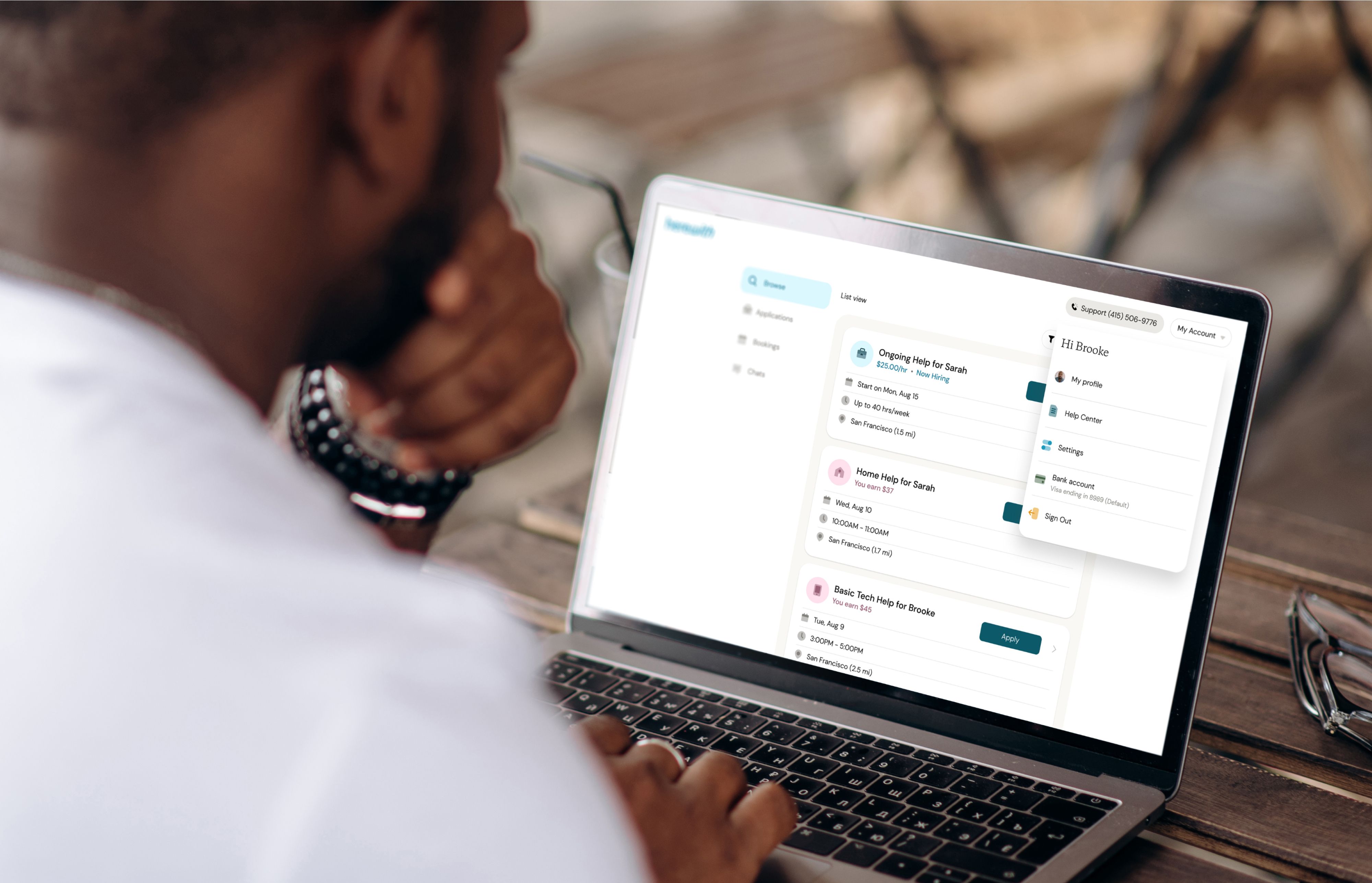
Helper account access on the Herewith platform
Simply look for My Account or the menu icon.
From here you can update your profile, access the Help Center, check your settings, set your bank account where payments are deposited, and sign out.
Where to find your account info on the web:
- Go to the My Account menu when you log in on the web. If you’re on your phone, tap the menu icon
- This is located at the top right corner of your screen.
From here you can update your profile, access the Help Center, check your settings, set your bank account where payments are deposited, and sign out.
Where to find your account info on Helper mobile app:
- Go to the Bookings tab or the Applications tab
- Tap the Menu icon (with three lines) in the upper right corner
From here you can access your Settings, set your bank account where payments are deposited, get support, and sign out.
Helper account settings and notifications
Your account settings are located in the Account Menu.
From here you can tap on Settings and access your contact information, sign in methods, push notifications, background location access, and app info, as well as signing out or deleting your account.
From the Account menu you can also easily access your Bank account where your paychecks are deposited and contact Support.
How to manage your Helper notifications:
On the web:
Go to My Account > Settings. Then toggle Push notifications on or off.
On the Helpers mobile app:
Go to your Applications or Bookings tab. Tap the menu icon (with three lines) Then tap Settings.
Toggle Push notifications on or off.
You may also need to make sure that you have your notification settings enabled for the Helper app on your phone, so you can receive important reminders and updates about your tasks, jobs, and pay.
How to manage your Helper profile
You can access your Helper profile anytime by tapping on the Profile menu in the upper left corner of your screen. Read our article for a detailed guide on managing your Helper profile.
How to close/delete a Helper account
For most users, we suggest toggling your profile off if you are taking a break from Herewith rather than closing or deleting your account.
If you do wish to close and delete your Helper account, go to your Settings, as described above. Then tap Delete Account.
Customer support for Helpers
If you encounter technical difficulties or need help with your Helper account, please reach out to our Customer Support team at support@herewith.com.
Still need help?
Call our Support team for further assistance.
Mon-Sat, 9AM-6:30PM PT- Call us at:
415-506-9776
- Send us an email
support@herewith.com





Herewith provides a platform to assist Helpers and care recipients in connecting regarding in-home non-medical care opportunities. Herewith does not employ any Helpers, nor does it recommend any Helpers and/or care recipients who use its platform. User information provided in profiles, posts, and otherwise on the Herewith platform is not generated or verified by Herewith. Each user of Herewith's platform is responsible for conducting their own vetting before determining whether to enter into an employment relationship and for their own conduct, including compliance with applicable laws.