Clocking in for Work as a Helper: A Quick Guide
Your guide to logging your hours on the Helper app so that you can get paid for senior care jobs
Written by
By Jill Tomasetti
Published
24 June 2026
Blog /
Managing your schedule and tracking your hours as an in-home Helper can be a headache. That's why we set out to streamline the process and help you by keeping everything in the Helper app.
Whether you're just starting out as a new Helper or you're an experienced caregiving ready to give Herewith a try, hopefully this guide will make clocking in a seamless, easy process for you.
How to track your hours and get paid as a Helper on Herewith
To get paid for one-time tasks and ongoing jobs, you need to clock in and clock out with the Herewith Helper mobile app every time you go to work.
One-time tasks and ongoing jobs are just a little bit different from each other, so we’ll go over clocking in and tracking your hours for both types of jobs.
Caregiver time-tracking: View your upcoming tasks and jobs
The Helper app makes it easy for you to keep track of your schedule as a busy in-home caregiver with multiple senior care clients.
ou can view upcoming tasks and shifts, review your hours, and make edits to your time card all from one easy place.
How to view your Herewith senior care client bookings:
- Go to your Bookings tab to see all your confirmed tasks and jobs.
- At the top you’ll see Ongoing jobs. This is where your weekly hours are tracked for your jobs.
- If you have more than one senior care client, swipe horizontally to view them all.
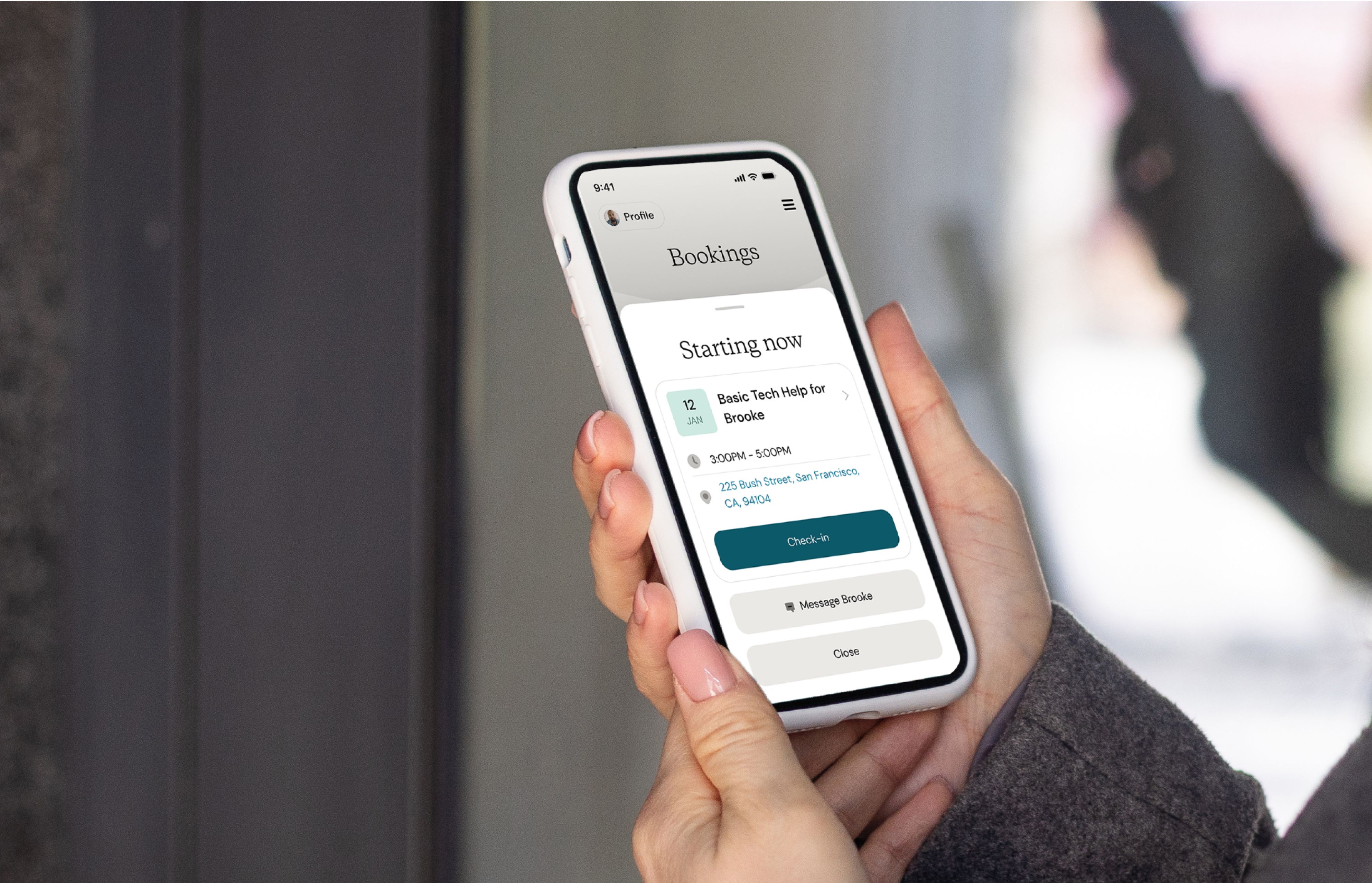
- The next section, Upcoming Tasks, is where you can find all your booked tasks, each with a countdown to remind you when it begins.
- Tap each task card to see more details.
How to clock in as a Helper: One-time task bookings
On Herewith, tasks are essentially one-time shifts with a private senior care client. Tasks can range from help with errands, household tasks, simple caregiving, and things like that.
All the details you need should be in the Help Request, or you can message your client if you need more information.
Starting work: Clock in for your task
- Five minutes before your task begins, the countdown in your Bookings tab will turn into a Start Task button.
- We’ll also send you reminders to make it super easy to clock in and start getting paid. You’ll receive one text SMS/ push notification two hours before the task is scheduled and another five minutes before.
- Simply tap Start task or Check-in to clock in and start getting paid!
Once you’ve confirmed your check-in, you’ll see a live shift screen. It’s ok to leave this page or even close the app if you need to—the time tracker will remain at the top of your screen until you press the orange End task button to clock out.
If you are still clocked-in past the set time for the task, you will receive a text SMS and push notification asking you to confirm whether you are still working.
Please note: It’s very important to clock in for tasks, because if you don’t clock in you can’t get paid.
Ending your task: how to clock out
When you’re done with your shift, it’s important to clock out so your hours will be accurate.
- Tap then slide the orange End Task button to the right.
- You’ll then see a summary of your hours.
- Tap Submit for Approval at the bottom of the screen so you can get paid.
One-time task bookings are paid by your client, same day.
How to clock in as a Helper: Ongoing care shifts
Ongoing care jobs are a little bit different than one-time tasks. For ongoing jobs, you’re hired by your senior care client, and you’ll work directly with them to decide your hours per week and schedule.
Unlike one-time tasks that get paid same-day, for ongoing care jobs, you’ll submit a timecard and be paid on a weekly basis.
Starting work: Clock in for your shift
- Go to your Bookings tab and tap the plus button (+) on the client card. If you have more than one full or part-time client, scroll horizontally to find the right client and tap the plus button.
- Next, tap Confirm Check In
- Once you’ve confirmed your check-in, you’ll see a live shift screen. It’s ok to leave this page or even close the app if you need to—the time tracker will remain at the top of your screen until you end your shift.
Ending work: How to clock out of your shift
- To end your shift: tap then slide the orange End Shift button to the right to clock out.
- Next you’ll see a summary of your shift with the total hours worked at the top.
- Tap Submit for Approval at the bottom of the screen if everything looks right.
- If you forgot to clock in or out, tap Make a correction to update your hours, add a reason for the change, then tap Save Changes to submit the hours for approval with the corrected time.
Caregiver time-tracking FAQs: Learn more about tracking your hours as a senior care Helper on Herewith
What if I am running late?
If you are running late, notify the person who has hired you, whether it’s for a one-time task or for ongoing help. Then, clock in as soon as you arrive at your worksite and are ready to start your shift or task.
Learn more about how to send messages to your client with Chats.
How do I log a shift that has already happened?
For ongoing help jobs, you can add a shift after it’s happened.
Go to Bookings > Ongoing Help > Tap on the client card > Add a Past Shift. You’ll enter the date, start time, and end time, then submit the shift for approval.
What if I accidentally clock in for a shift?
If you accidentally tap the Start Shift button for an ongoing care job, you can end the shift as described above. Then tap the trash icon in the upper right corner, then confirm.
What if I accidentally clock out while I am still working?
To continue working, tap Resume Task or Resume Shift.
For job shifts only: You can also submit a correction to your hours afterwards if needed. Simply follow the directions in Step 5 above to Make a Correction.
How do I clock out for a break?
It’s important to discuss when and how you should take breaks with your client before you start working. If you do need to take an unpaid break (to run an errand, take a meal break, pick your child up from school, etc) you can simply end your shift. Then, when you’re ready to clock back in, start a new shift the same way you usually do.
How to correct your hours for an ongoing help shift
If you have an ongoing help job with a client, you’ll clock in and out for your weekly shifts. In-home help can be a busy, hands-on job and there may be times when you may need to correct your hours after your shift is over.
What is a shift correction?
A correction is when you edit your hours. For example, if you accidentally clocked out early, you can go back and update your shift end time to make sure you get paid the full amount. You’ll need to leave a reason for the edit explaining the change to your client.
Sometimes a client may submit a shift dispute. This doesn’t mean they’re upset, it simply means they think that the hours may be incorrect. Usually a quick chat with your client can clear up any confusion or misunderstandings. Once you’ve sorted it out, simply submit a shift correction (if needed) to resolve the disputed shift.
For best practice, submit any correction right after the shift occurs, but no later than Sundays at 5PM so that it can be processed with that week’s payroll.
How to correct your hours
There are two ways to correct your hours:
- You correct your hours on your own before submitting them for approval
- Your client may request a correction after you’ve submitted the shift for approval
How do I correct my hours after they’ve been submitted?
If your client disputes your hours after they’ve been submitted, you’ll receive a push notification letting you know so you can make a correction.
- Tap on the link or open your app and go to Bookings > Client Name > This Week’s Shifts and tap on the shift with the red Disputed tag
- You’ll see a reason for the dispute from your client. Tap the Make a Correction button to edit your hours, then submit the change for approval
- The shift will now show as Corrected and will be processed with the current week’s payroll
Location permission: How it helps you track your hours for an accurate paycheck
Wondering if you should enable your location permission settings for the Herewith app? Here’s why we ask for it and how it helps you get the most accurate time cards with less editing and delays.
Herewith uses location data to enable live shift tracking and automatic check-in reminders when your app is closed or not in use. This helps you get the most accurate time-tracking so you can get paid for your time. Denying access to location data will disable automatic shift reminders and location tracking during live shifts.
How to enable your location permission for automatic shift reminders
The first time you clock in for a task or shift on your Helper app, you’ll see a pop-up asking if you’d like to allow location permissions. Select Yes or Allow to enable the Helper app’s location permissions.
If you denied location permission the first time you saw the pop-up, you can go back and change your settings in the account menu anytime. Here’s how to enable location-based shift tracking on your device:
- Open your mobile app and go to Settings > Location Tracking for Shifts > Enable
- Select your location data preferences
More resources for getting paid as a Herewith Helper working with private in-home care clients:
Still need help?
Call our Support team for further assistance.
Mon-Sat, 9AM-6:30PM PT- Call us at:
415-506-9776
- Send us an email
support@herewith.com





Herewith provides a platform to assist Helpers and care recipients in connecting regarding in-home non-medical care opportunities. Herewith does not employ any Helpers, nor does it recommend any Helpers and/or care recipients who use its platform. User information provided in profiles, posts, and otherwise on the Herewith platform is not generated or verified by Herewith. Each user of Herewith's platform is responsible for conducting their own vetting before determining whether to enter into an employment relationship and for their own conduct, including compliance with applicable laws.